
01CODVIAN Desktop (Windows)
CODVIAN Desktop is a Windows app you install from the Microsoft Store. macOS is coming soon.
- Open the Microsoft Store listing
Go to the download page and choose Windows, or open the Microsoft Store listing directly. It is the only official place to install CODVIAN Desktop.
- Install
Select Get (or Install). The Store downloads and installs CODVIAN; it is free to install.
- Open CODVIAN
Launch the app from the Start menu once installation finishes.
- Sign in
Choose Continue with Google. CODVIAN opens your browser to complete sign-in, then returns to the app. Signing in is required — bringing your own key or a local model does not skip it.
- Add a project and a model
Create a local project and pick the folder you want to work in. Then open Settings → Models & Providers: use a CODVIAN managed model (billed in credits), or connect your own provider key or a local Ollama / LM Studio server and test the connection.
- Send your first task
Describe a small, reviewable change. Review the diff and any command output before you accept it.
Common issues. If sign-in does not complete, check your internet connection and finish the Google flow in the browser, then return to the app. If a model connection fails, re-check the provider key, your account access and quota, the model name and (for local models) that the server is running and reachable. The app uses the tools already on your computer, so install your project's runtime and Git yourself. More help is in troubleshooting.
02CODVIAN for VS Code
CODVIAN for Visual Studio Code is published on the Visual Studio Marketplace by publisher Codvian (extension id Codvian.codvian-vscode). Install it inside VS Code in a few steps.
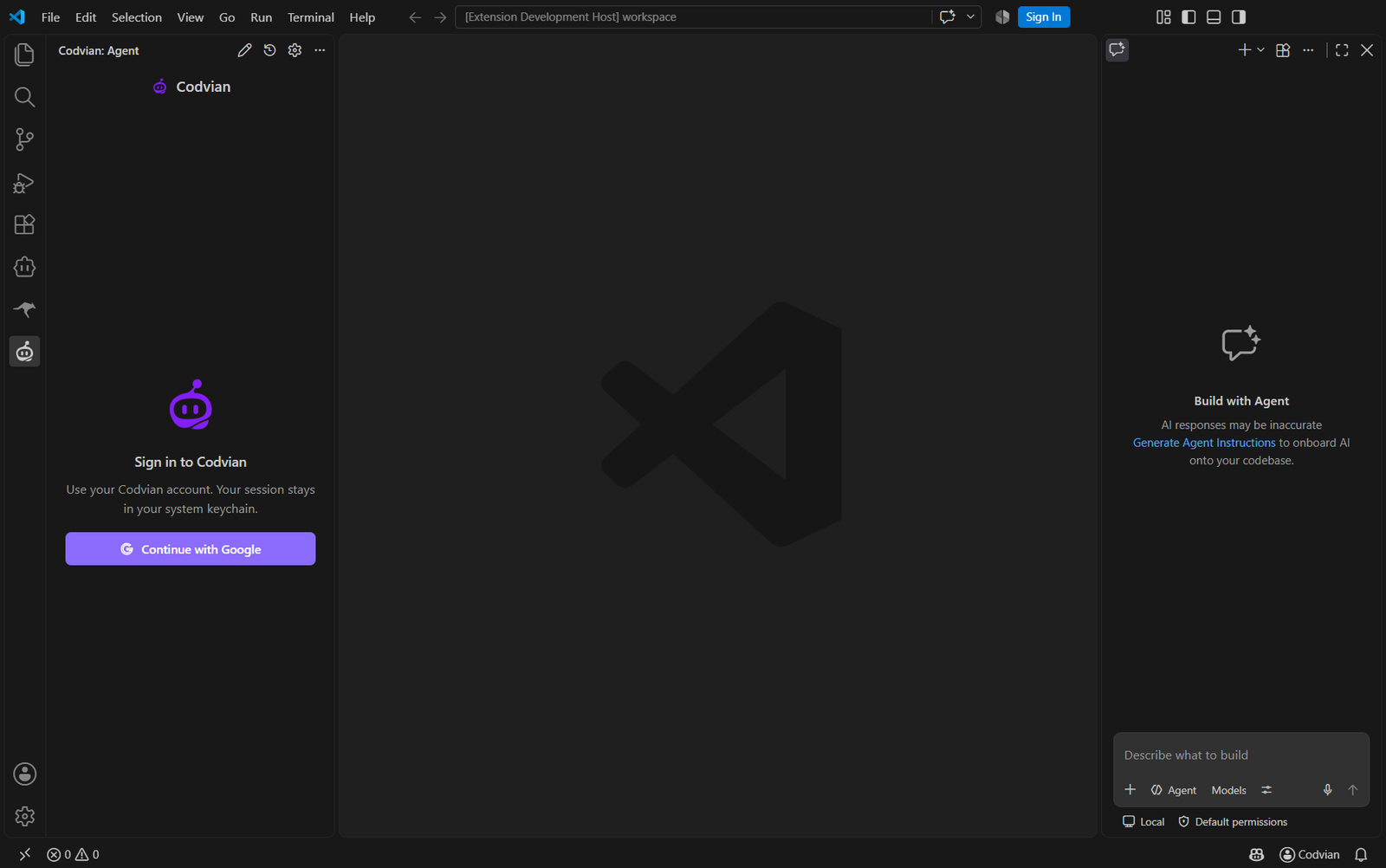
- Open the Marketplace page
- Check the publisher
Confirm the publisher is Codvian (publisher page) and the id is
Codvian.codvian-vscode, so you install the official extension. - Install
Select Install on the Marketplace page.
- Allow VS Code to open
Your browser asks to open Visual Studio Code — allow it. VS Code opens the extension page.
- Confirm the install
In VS Code, select Install on the extension page. VS Code downloads and enables CODVIAN.
- Open CODVIAN
In the Activity Bar (the icons down the side), click the Codvian icon — it shows the CODVIAN mascot. This opens the Agent view.
- Sign in
In the Agent panel, choose Continue with Google under “Sign in to Codvian”, sign in, and approve “Codvian for VS Code”. Sign-in uses a local
127.0.0.1callback and works in local VS Code windows; it does not work in Remote SSH, WSL, Dev Containers or Codespaces. Advanced: run Codvian: Sign In with an API Key and paste a key from the CODVIAN dashboard. - Start using it
Describe what you want. The extension shows file edits as a diff with Apply / Reject and shows commands before they run, so you approve each change.
Copy and paste to install.
ext install Codvian.codvian-vscode
Codvian.codvian-vscode
code --install-extension Codvian.codvian-vscode
Other ways to install. Open the Extensions view in VS Code (Ctrl+Shift+X), search for CODVIAN and install it; or run code --install-extension Codvian.codvian-vscode in a terminal where the code command is available.
How updates work. VS Code updates Marketplace extensions automatically. To update by hand, open the Extensions view, find CODVIAN and select Update if one is offered.
Common problems. If the browser cannot open VS Code, install the extension from the Extensions view instead. If sign-in does not finish, make sure you are in a local VS Code window (not Remote SSH / WSL / a container) and use the API-key option if needed. In an untrusted workspace the extension reads nothing until you trust the folder.
03Open VSX-compatible editors
What Open VSX is. The Open VSX Registry is a vendor-neutral, open-source registry of VS Code extensions, run by the Eclipse Foundation. Editors that are not Microsoft's own build of VS Code cannot use the Visual Studio Marketplace, so many of them install extensions from Open VSX instead.
CODVIAN on Open VSX is pending. The CODVIAN namespace is under review, so CODVIAN is not yet published to Open VSX. There is no install link for these editors until the listing exists. When it is published, this page and the download page show a live install link automatically — no action needed from you.
Editors verified to use Open VSX by default (each links to its own documentation):
| Editor | Uses Open VSX? | How to install (once CODVIAN is listed) | Source |
|---|---|---|---|
| VSCodium | Yes — the pre-set extension gallery | Open the Extensions view and search for CODVIAN once it is published; install as usual. | VSCodium docs — Extensions + Marketplace |
| code-server (Coder) | Yes — uses the Open VSX gallery | Use the Extensions sidebar, or run code-server --install-extension Codvian.codvian-vscode once listed. | code-server docs — FAQ |
| Eclipse Theia | Yes — uses Open VSX for extensions | Install from the Extensions view once CODVIAN is published to Open VSX. | code-server FAQ (Theia comparison) · Eclipse Theia |
If your editor uses a different source. Some editors (for example commercial VS Code forks) ship their own extension gallery rather than Open VSX, and some can be pointed at a custom gallery through product.json or environment variables. Check your editor's own documentation for where it gets extensions. CODVIAN only publishes to the Visual Studio Marketplace today and, once verified, to Open VSX; we do not distribute a VSIX file to install from other sources.
Full compatibility notes, with sources and the dates checked, are tracked in the project's Open VSX compatibility record.