
- Extension ID
Codvian.codvian-vscode- Publisher
- Codvian
- Listed on
- Microsoft Marketplace (VS Code)
- Desktop app
- Windows via Microsoft Store · macOS coming soon
- Open VSX
- Not available yet
What is Codvian?
CODVIAN is an AI coding agent. In general, a coding agent is different from a chat window or from autocomplete: instead of answering one question or finishing one line, it is built to take a goal, work through several steps inside your project, and hand the result back for you to check.
Codvian is available as a VS Code extension and as a Windows desktop app, and there is a dashboard app at app.codvian.com. This guide only covers what is confirmed today. For details about specific features, use the documentation at codvian.com/docs.
How to install the Codvian extension in VS Code
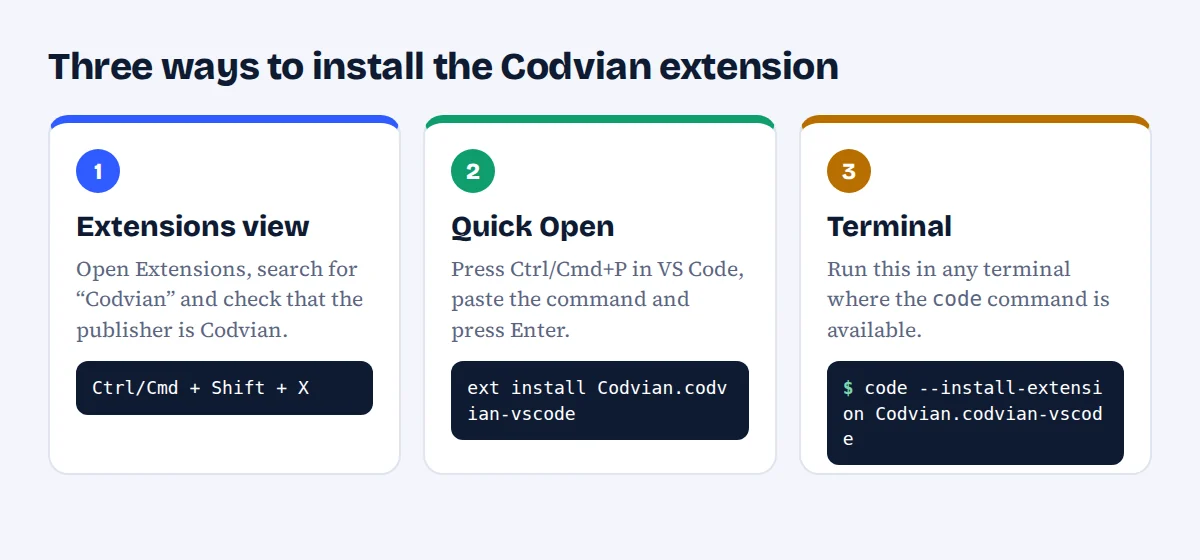
The extension is published on the Microsoft Marketplace as Codvian.codvian-vscode, from the publisher Codvian. Pick whichever method you prefer; they all install the same extension.
Method 1: the Extensions view
- Open Visual Studio Code and press Ctrl/Cmd + Shift + X to open Extensions.
- Search for Codvian.
- Check that the extension ID is
Codvian.codvian-vscodeand the publisher is Codvian, then select Install.
Method 2: Quick Open
Press Ctrl/Cmd + P, paste the line below and press Enter.
ext install Codvian.codvian-vscodeMethod 3: the command line
If the code command is available in your terminal, run:
code --install-extension Codvian.codvian-vscodeCheck before you click. Look-alike and typosquatted extensions are a known risk in every extension marketplace, so confirm the ID and publisher shown above. You can also open the official listing: Codvian on the Marketplace.
After installing, follow the setup instructions on the extension’s Marketplace page and in the Codvian documentation. Those are kept up to date, so they are a safer source than third-party posts. For general help with extensions, see the VS Code extension Marketplace guide.
Where Codvian is available today
Availability matters, so here is the current status, kept to what is confirmed.
| Surface | Status | Details |
|---|---|---|
| VS Code extension | Available | Microsoft Marketplace, ID Codvian.codvian-vscode |
| Windows desktop app | Available | Get it from the Microsoft Store |
| macOS desktop app | Coming soon | No release date announced |
| Open VSX registry | Not yet | Namespace verification is pending |
If you use an editor build that installs extensions only from Open VSX, the Codvian extension cannot be installed from there yet. You can find the latest downloads on the Codvian download page.
Your first task with any AI coding agent
These steps work with Codvian or any other agent. They keep the first run small, visible and easy to undo.
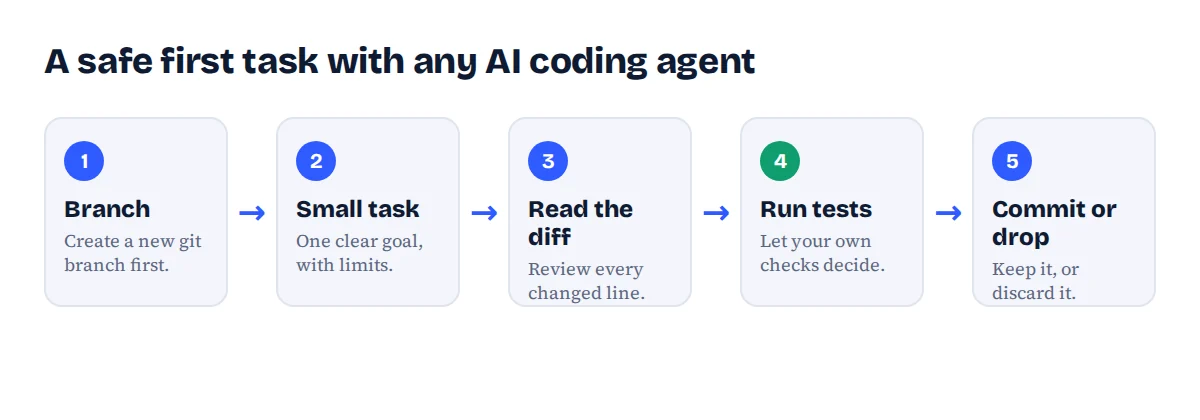
- Create a branch. Run
git switch -c try-agentso everything the agent does is separated from your main work. - Pick a small task. One clear goal, a named file or folder, and a limit such as “do not change anything else”.
- Read the diff. Review every changed line as you would a colleague’s pull request.
- Run your own tests. Your existing checks should decide whether the change is good, not the agent’s own summary.
- Commit or discard. Keep the result with a normal commit, or throw the branch away.
Three prompts to start with
Read the README and the src/ folder, then explain how a request flows through this project. Do not change any files.Add input validation to the signup form. Only touch signup.ts and its test file. Run the existing tests and tell me the result.Find every place this function is called and list the callers. Propose a rename, but wait for my approval before editing.Eight questions to ask before you trust an agent with your code
Ask these of any AI coding tool, including Codvian. For Codvian-specific answers, read the official documentation instead of guessing.
Does it ask before editing files?
You should be able to see and approve changes, not discover them later.
Does it ask before running commands?
Commands can install, delete or send data. Know when they run.
Can I see every change as a diff?
A clear before-and-after is the basis of a real code review.
How do I undo a bad run?
Git is your safety net. Commit before the agent starts.
Where does my code go?
Find out which servers and model providers receive your files and prompts.
What stays off limits?
Keep
.envfiles, keys and credentials out of reach.What does a run cost?
Look for usage you can see before the bill arrives.
Is there a record of what it did?
History and logs help you audit and reproduce a result.
Frequently asked questions
What is the Codvian extension ID?
The extension ID is Codvian.codvian-vscode and the publisher is Codvian. It is published on the Microsoft Marketplace.
How do I install Codvian from the command line?
Run code --install-extension Codvian.codvian-vscode in a terminal where the code command is available. Inside VS Code you can also press Ctrl/Cmd+P and run ext install Codvian.codvian-vscode.
Is Codvian available on Open VSX?
Not yet. Namespace verification for Open VSX is pending, so the extension is currently installed from the Microsoft Marketplace.
Is there a Codvian desktop app?
Yes, for Windows through the Microsoft Store. A macOS desktop app is coming soon.
What is Codvian?
CODVIAN is an AI coding agent, available as a VS Code extension and a Windows desktop app, with a dashboard app at app.codvian.com.
Ready to try Codvian?
Install the extension from the Microsoft Marketplace, or get the Windows app from the Microsoft Store.
Install for VS Code Windows app Read the docs